Company
About Tomosu Our Team
Platform
Platform & Agents Indexes How it works Solutions
Docs
MCP Server Integrations · GitHub App Integrations · CodeRabbit MCP FAQ
Free Tools
Governance Impact
Resources
Blogs News Book a call →
Tomosu AI — GitHub App

Installation & User Guide

Get Tomosu AI reviewing your pull requests in under two minutes. No configuration files, no API keys, no CI changes needed.

Setup timeUnder 2 minutes
ConfigurationNone required
OutputPRI score 0–100
Merge thresholdPRI ≥ 70

01What is Tomosu AI?

Tomosu AI is an automated code reviewer that works directly inside GitHub. Every time you open or update a pull request, Tomosu AI:

You get a Production Reliability Index (PRI) score out of 100, a clear merge verdict, and before/after code snippets showing exactly what to fix — all without leaving GitHub.

Zero configuration. Once installed, it works automatically on every PR in the repositories you select. No YAML files, no CI changes, no API keys.

02Installation Steps

1
Go to the Tomosu AI GitHub App page

Visit the Tomosu AI GitHub App on the GitHub Marketplace or follow the link provided by your team. Click the green Install button.
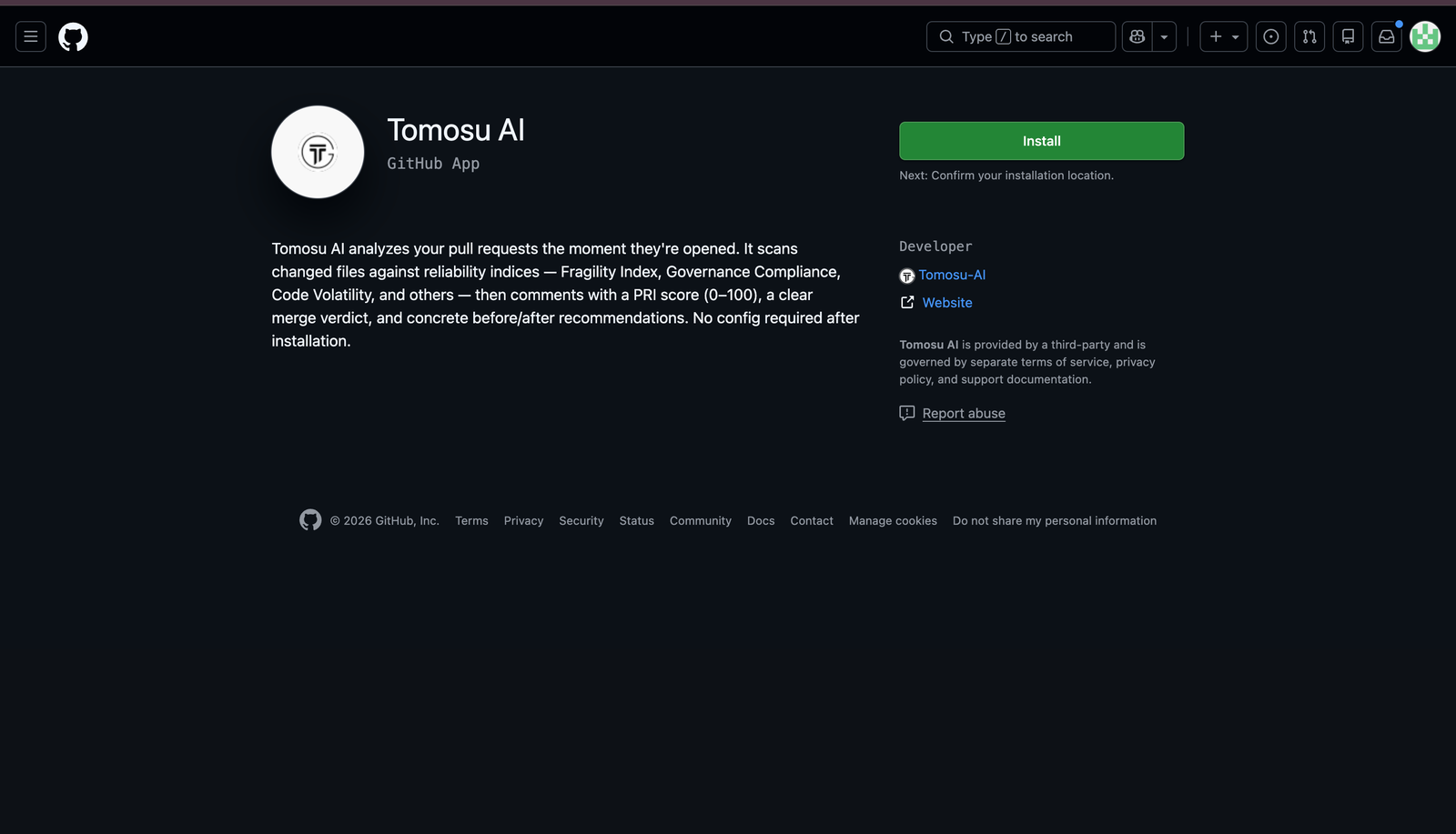
The Tomosu AI GitHub App page on GitHub, showing the app description and the green Install button in the top right.
Fig. 1 — The Tomosu AI GitHub App page with the Install button
2
Choose where to install

GitHub will ask where you want to install Tomosu AI. Select your personal account or an organization you manage.
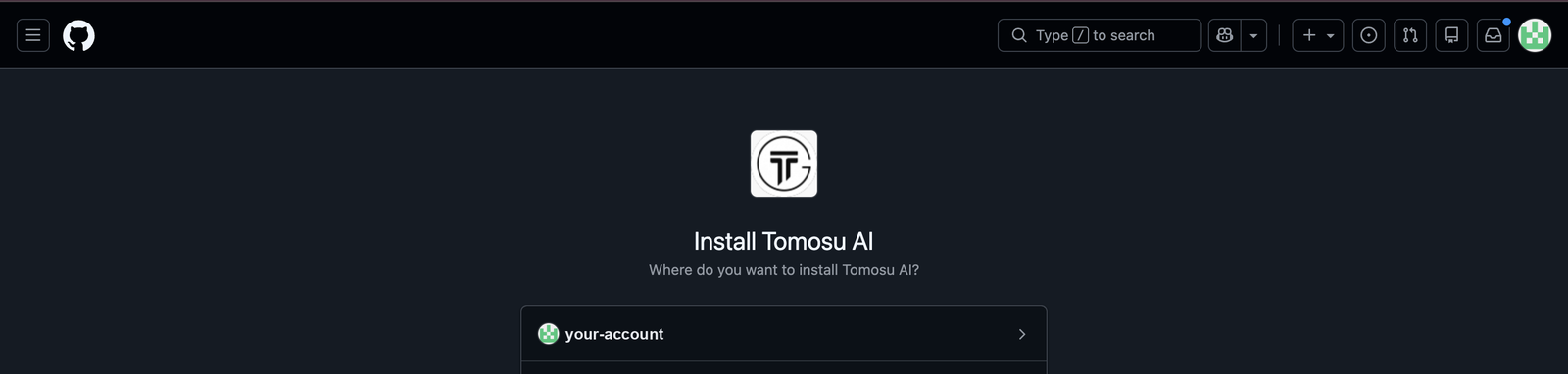
GitHub's Install Tomosu AI screen asking where to install, with the account selector listed below.
Fig. 2 — Selecting the installation account
3
Review permissions and authorize

GitHub shows the permissions Tomosu AI needs. Click Install & Authorize to continue. You will be redirected to the Tomosu VisionBoard to complete account linking.
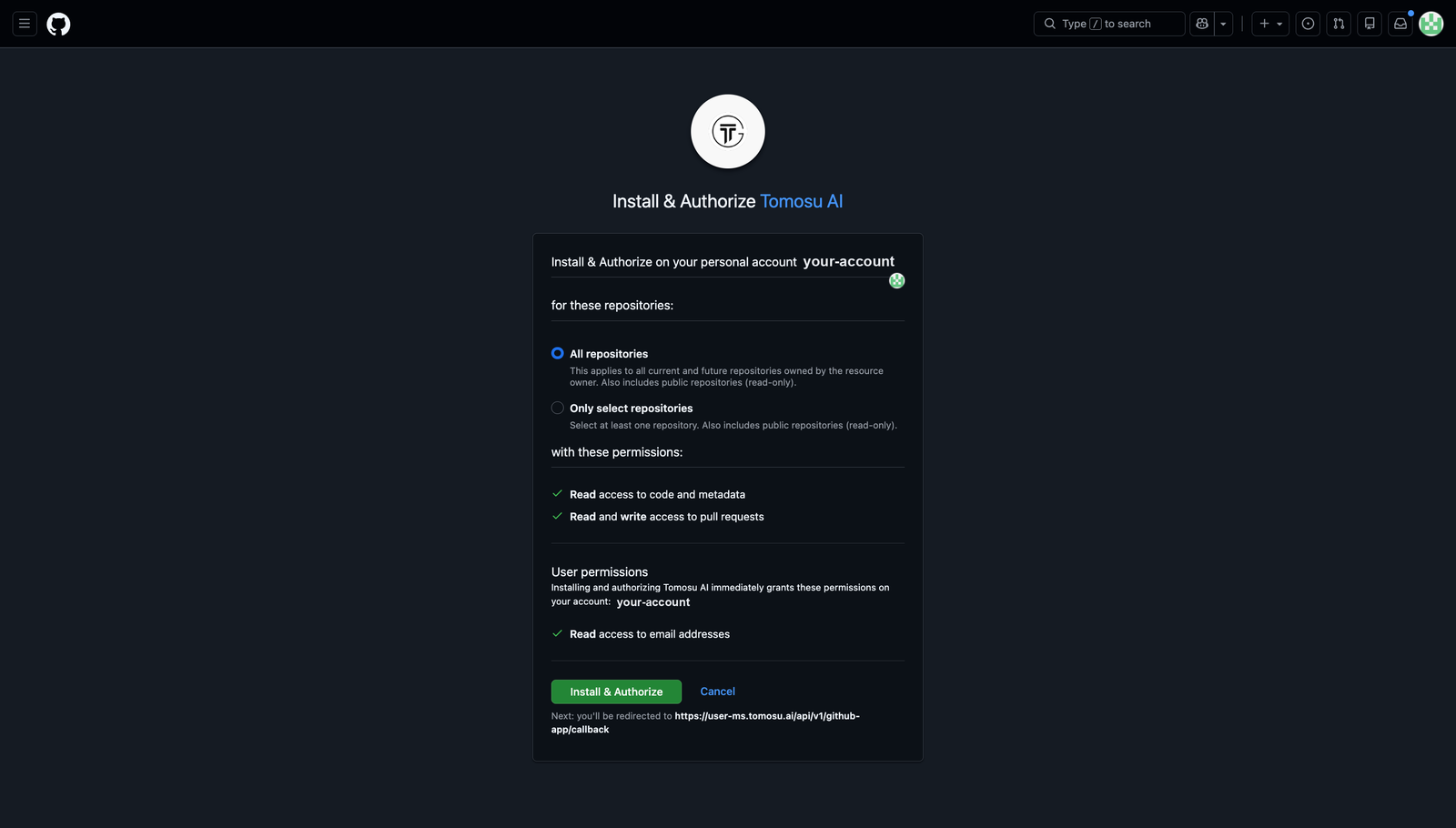
The Install and Authorize screen showing repository scope options, read access to code and metadata, read and write access to pull requests, and read access to email addresses.
Fig. 3 — Permission summary before authorizing
4
You're connected!

The Tomosu VisionBoard shows a success screen confirming your GitHub account is linked. Click Go to Dashboard to view your account.
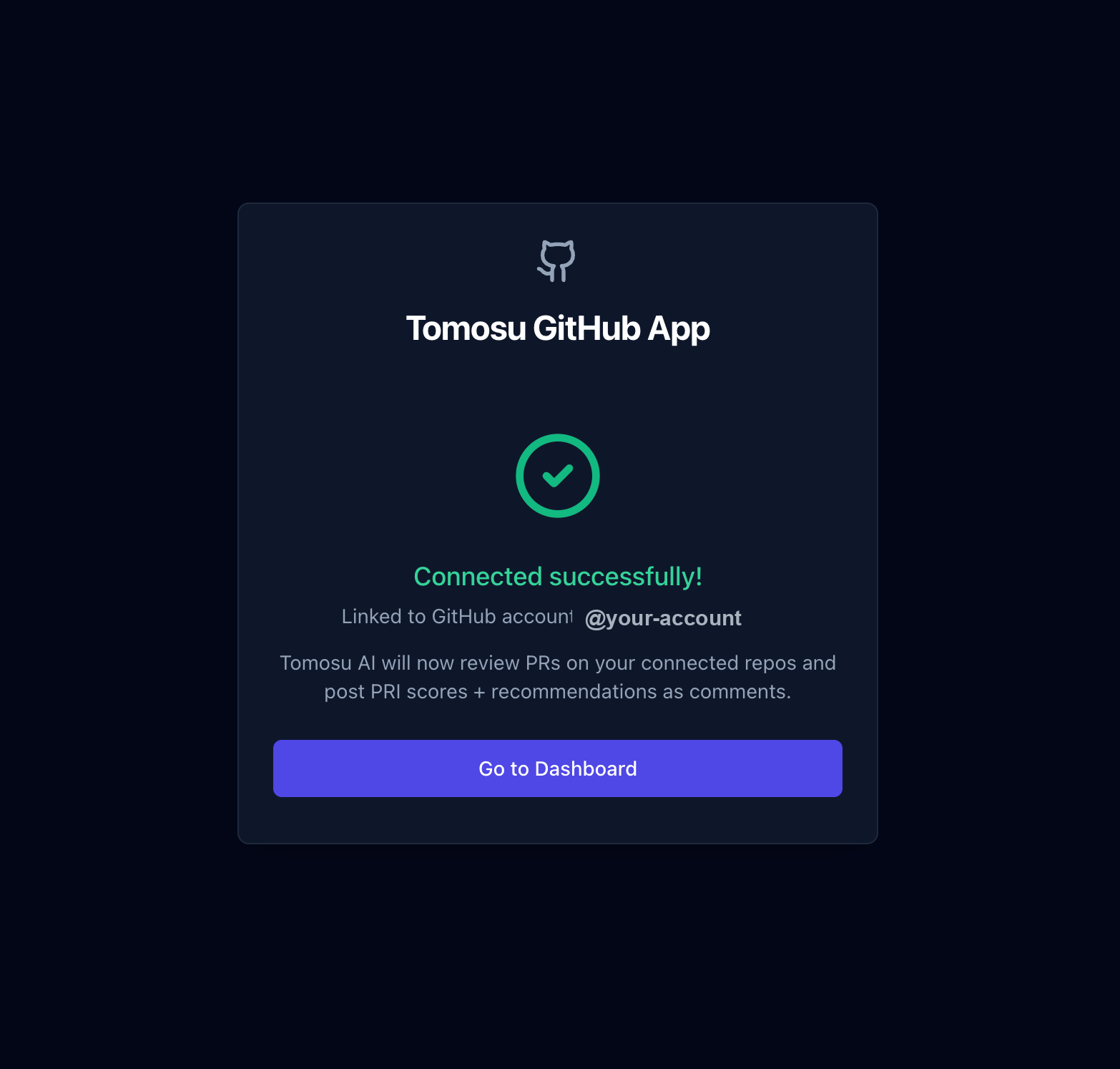
The Tomosu VisionBoard success screen reading Connected successfully, with the linked GitHub account and a Go to Dashboard button.
Fig. 4 — Connected successfully screen in VisionBoard

03What You'll See in Pull Requests

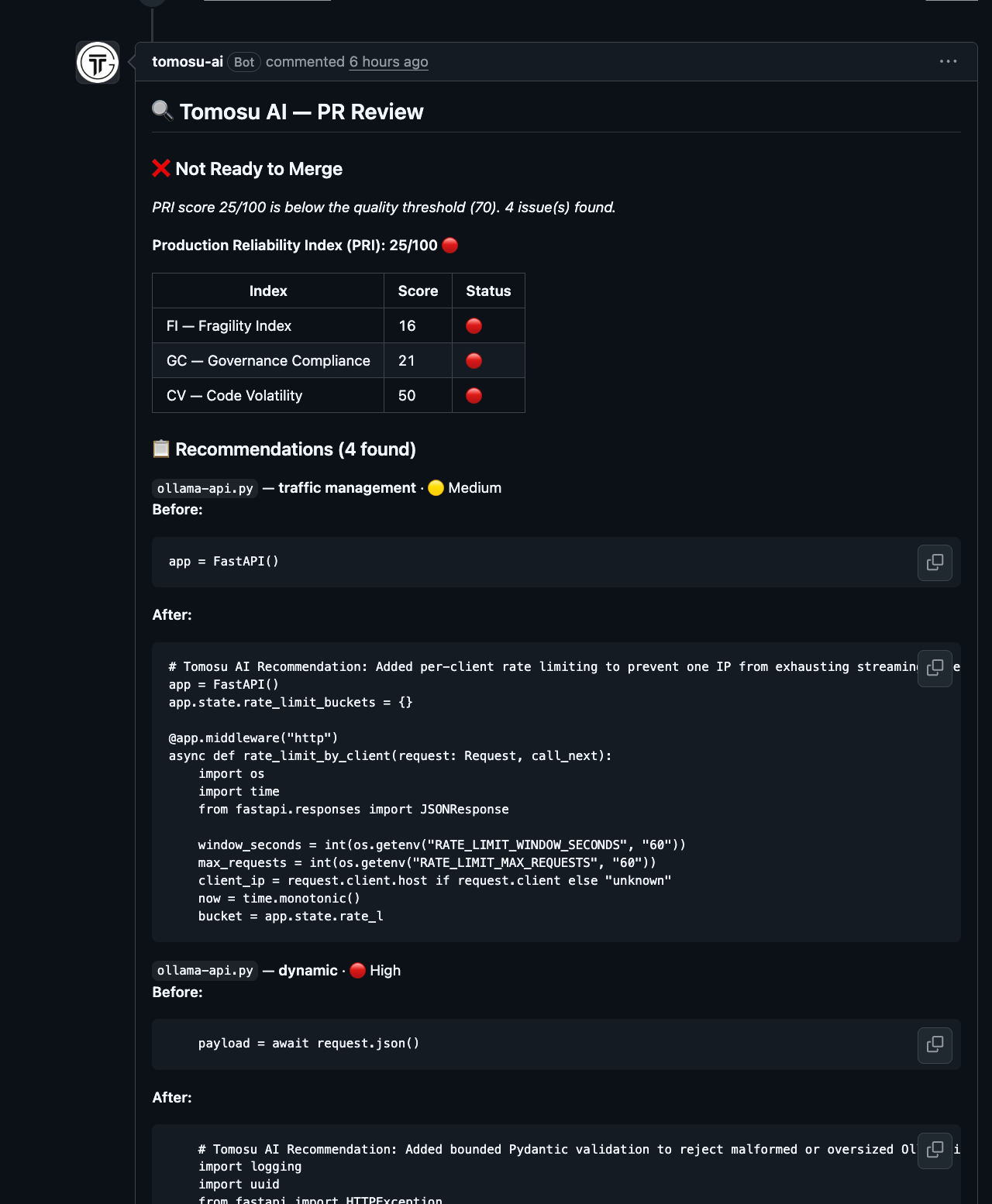
After installation, open any pull request in a connected repository. Within a few seconds, Tomosu AI posts a review comment.

A sample Tomosu AI pull request comment showing a Not Ready to Merge verdict, a PRI score of 25 out of 100, a sub-index table for Fragility, Governance Compliance and Code Volatility, and before/after code recommendations.
Fig. 5 — Sample Tomosu AI PR comment showing PRI score and recommendations
Merge verdict

A clear Ready to Merge or Not Ready to Merge headline. The threshold is PRI ≥ 70. Below 70 means the PR needs attention before merging.

Score table
IndexFull nameWhat it measures
PRIProduction Reliability IndexOverall reliability score, 0–100
FIFragility IndexCode stability — starts at 100, deducted per issue severity
GCGovernance ComplianceBest-practice rules followed (out of 10)
CVCode VolatilityIssue count — fewer issues = higher score
Recommendations

Each recommendation shows the affected file, issue category, severity (High / Medium / Low), and exact before/after code so you know precisely what to change.

04Permissions Explained

Tomosu AI requests the minimum permissions needed to do its job:

PermissionAccess levelWhy it's needed
Repository contentsRead-onlyRead the source files in your changed PRs for analysis
Pull requestsRead and writePost the review comment on your PR
Email addressRead-onlyLink your GitHub account to your Tomosu profile
Tomosu AI never writes to your code. It never creates commits or branches, and never reads files outside the PR's changed file list.

05Managing Your Installation

Check connection status

Log in to VisionBoard (visionboard.tomosu.ai) and navigate to Settings → GitHub App. You'll see all linked installations with account name and repository scope.

Change repository access

Go to github.com/settings/installations, find Tomosu AI, and click Configure. Switch between "All repositories" and "Only select repositories" at any time.

Uninstall the app
  1. VisionBoard → Settings → GitHub App → Disconnect
  2. github.com/settings/installations → Tomosu AI → Uninstall

Uninstalling removes the connection immediately. Existing PR comments are not deleted. You can reinstall any time by repeating the steps above.

Using CodeRabbit? The CodeRabbit MCP Integration guide shows how to connect Tomosu MCP to CodeRabbit in under two minutes so it can pull reliability scores into your PR reviews.