Get Tomosu AI running inside VS Code, Cursor, or Antigravity in under two minutes. Install from the Marketplace, sign in, and start scanning your codebase for reliability issues immediately.
Tomosu AI is a reliability governance layer that works directly inside your editor. Once installed, you can scan any file or workspace and receive a Production Risk Index (PRI) score — a number from 0 to 100 that measures how production-ready your code is across eight reliability dimensions.
The same analysis runs on pull requests via the GitHub App and inside AI assistants via the CodeRabbit MCP integration. The editor extension is the fastest way to get a score on any repository before you open a PR.
Click the Extensions icon in the Activity Bar on the left side of VS Code (or press
Ctrl+Shift+X / ⌘⇧X). This opens the Extensions Marketplace view.
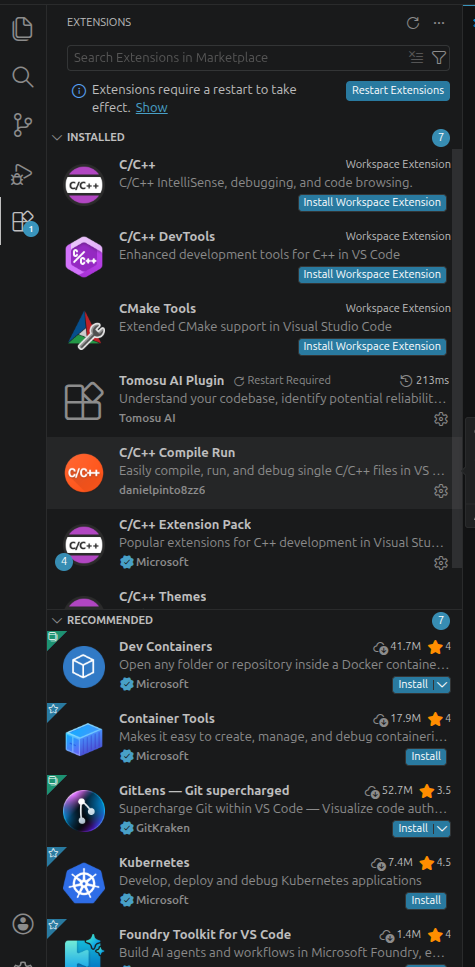
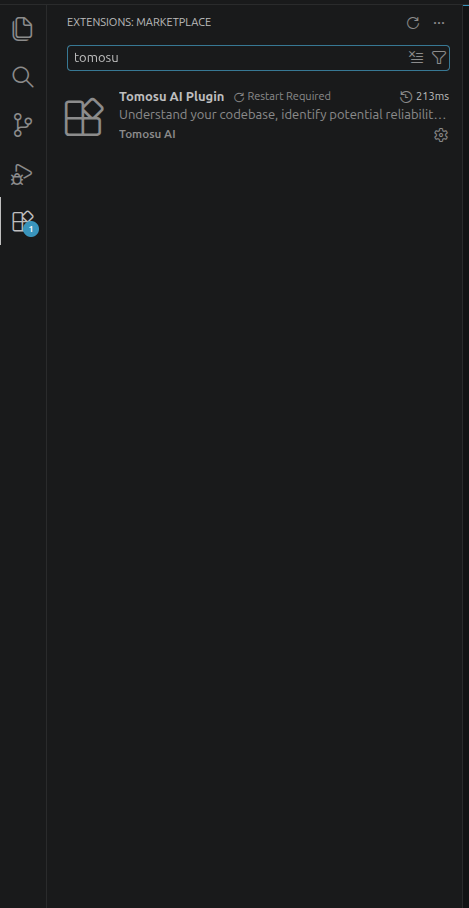
Type tomosu in the search box at the top of the Extensions panel. You will see the Tomosu AI Plugin listed. Click Install on the entry that shows “Understand your codebase, identify potential reliability concerns.”
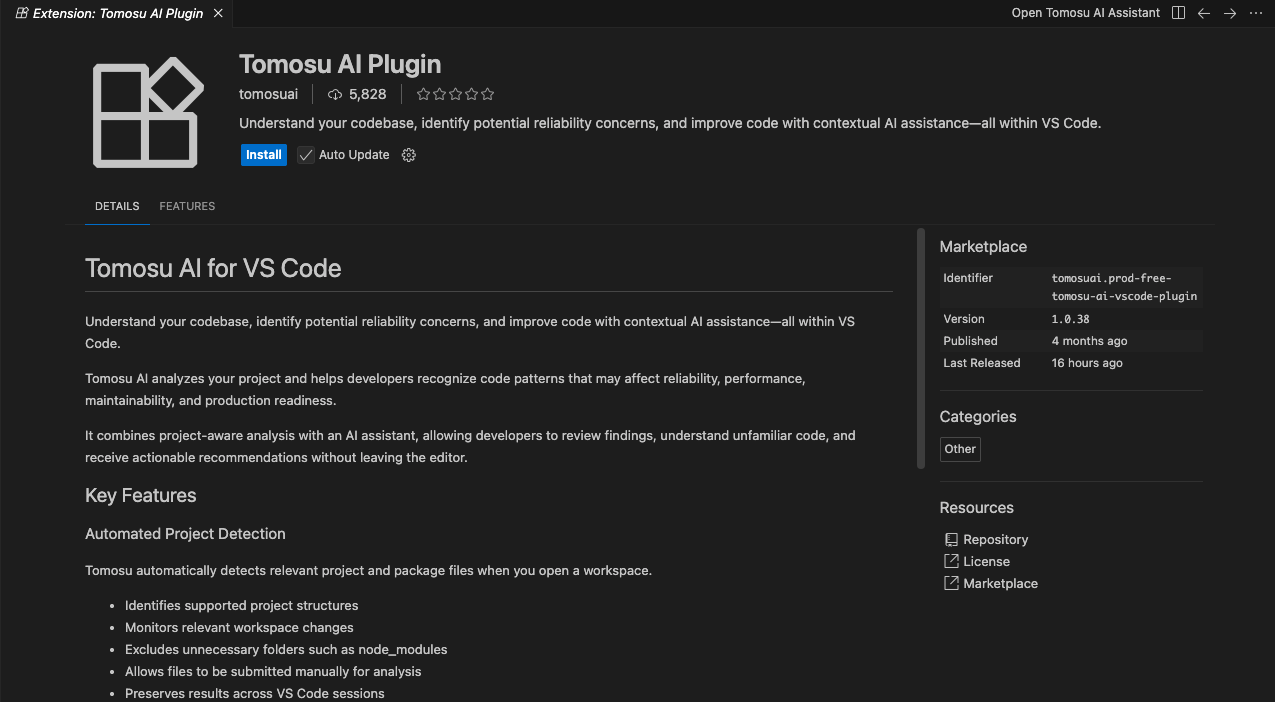
Clicking the extension name opens the full detail page. Confirm this is Tomosu AI Plugin by tomosuai, then click the blue Install button. The extension installs in seconds with no additional configuration.
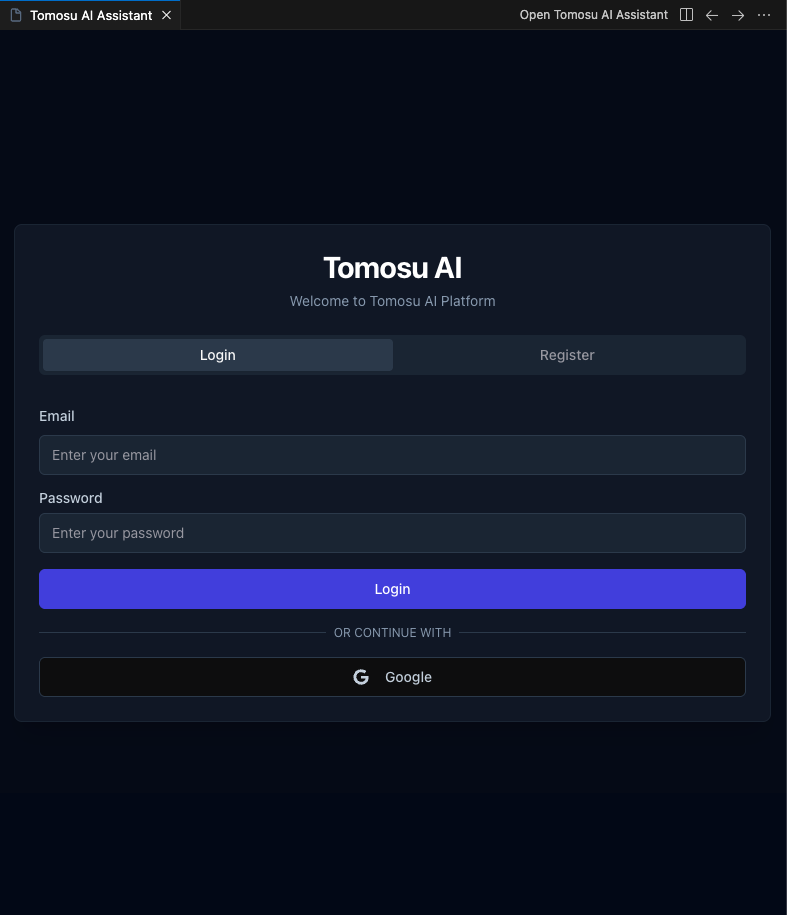
After installation, the Tomosu AI Assistant panel opens automatically. You will be prompted to log in. Enter your work email and password, or click Google to sign in with your Google account. If you do not have an account yet, click Register.
Once signed in, you land on the main Tomosu AI Assistant panel. Your account ID appears in the top-right corner. From here you can run a CodeScan, open VisionBoard, access GitAgent, or ask the AI assistant questions about your codebase.
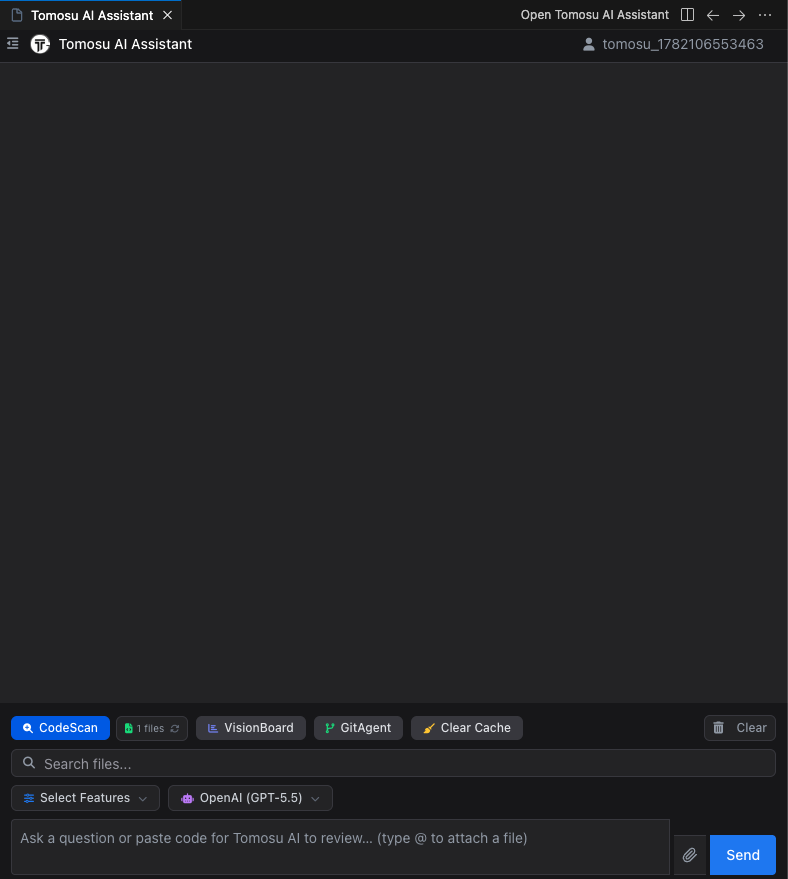
A code scan analyses your open workspace against eight reliability dimensions and produces a Production Risk Index (PRI) score. The scan is read-only — it never modifies your files.
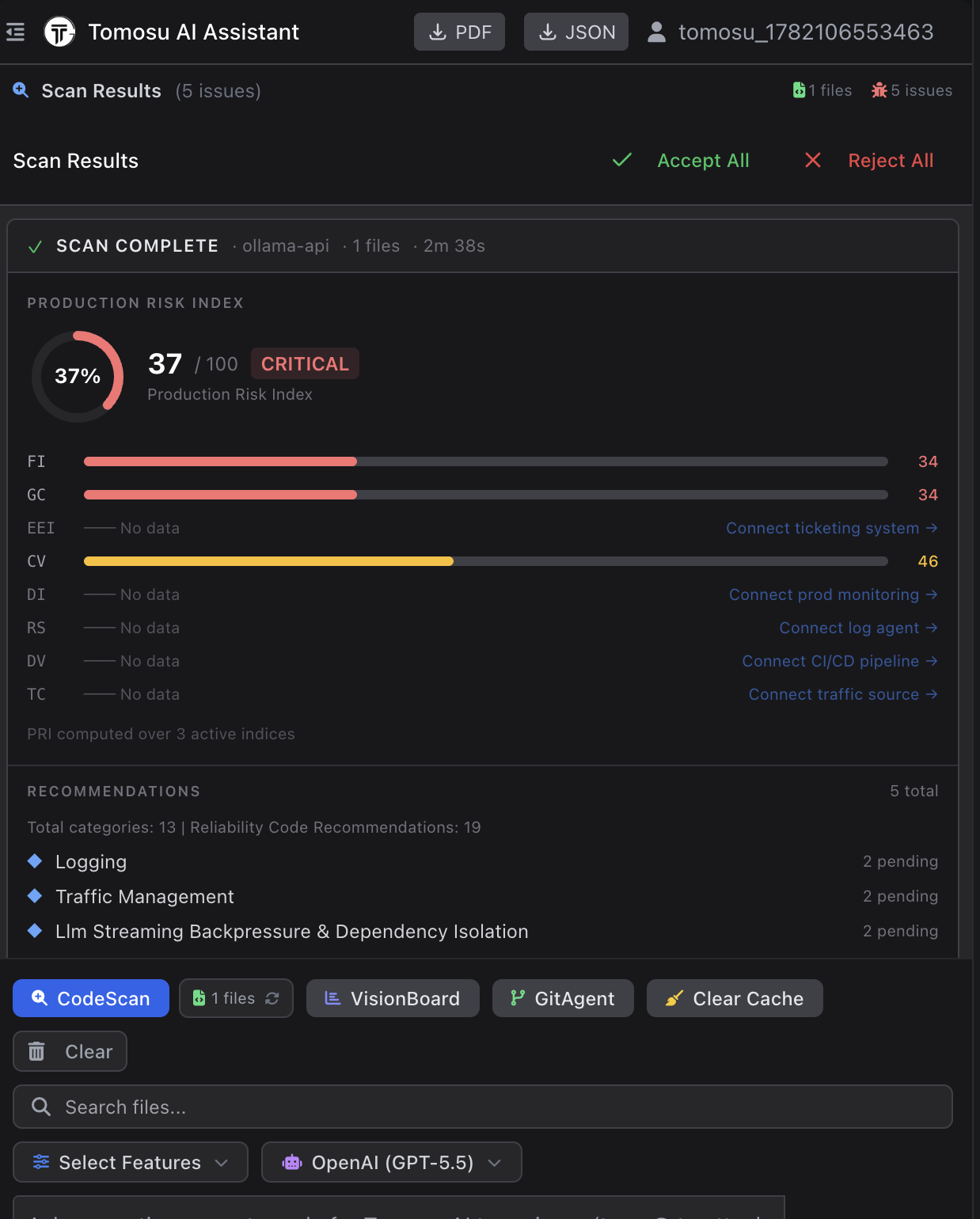
Click the CodeScan button at the bottom of the panel. Tomosu automatically detects the files in your workspace, runs the analysis, and posts the results in the panel. A typical scan takes under three minutes.
The results show your overall PRI score out of 100, sub-scores for each active index (FI, GC, CV, and more), and a prioritised list of recommendations grouped by category. Indexes with no data prompt you to connect the relevant signal source (ticketing system, CI/CD pipeline, log agent, etc.).
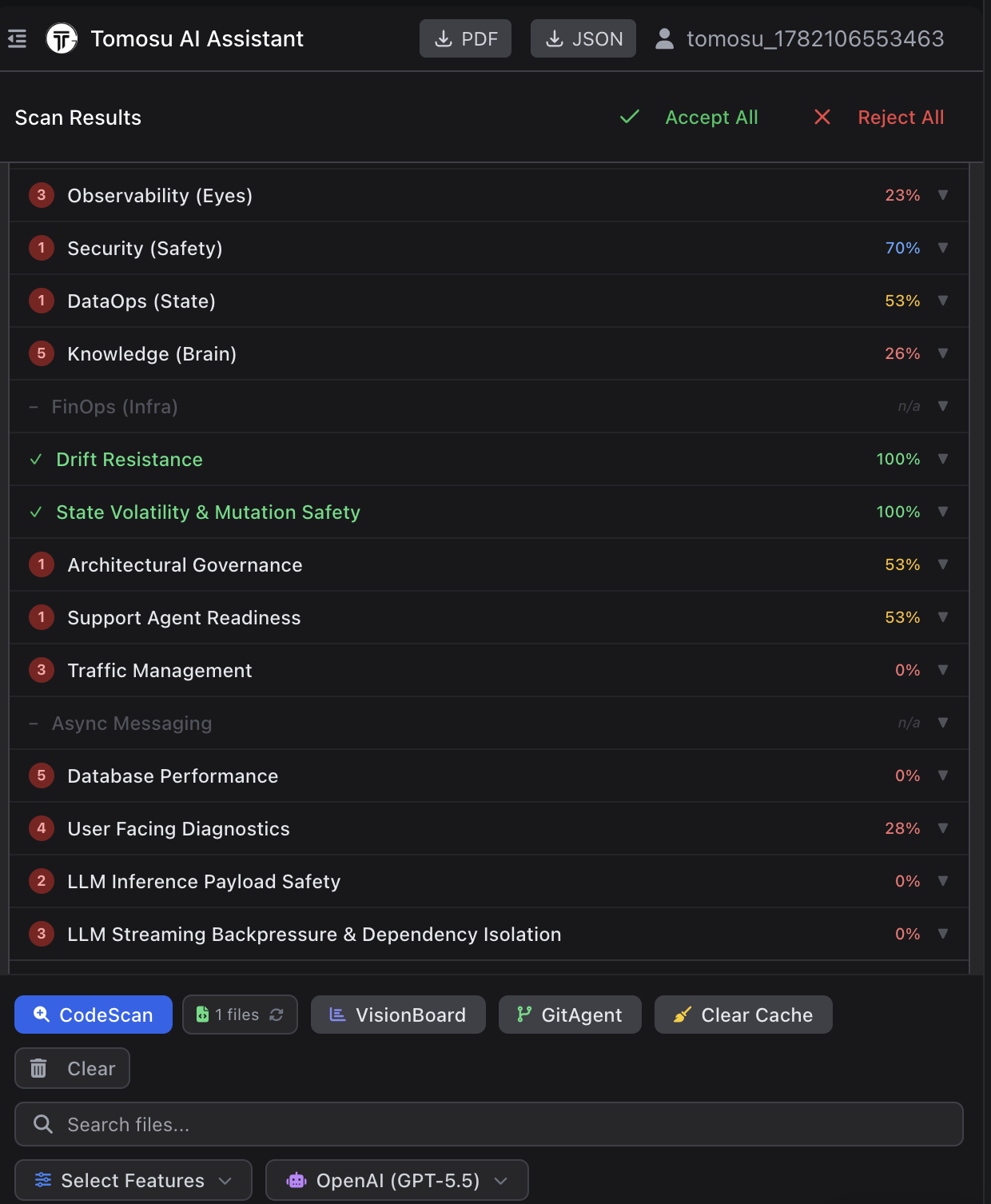
The scan results panel has two levels of detail. The top level shows your PRI score and the recommendations grouped by category. Expanding a category shows every finding inside it with a pass/fail status and a percentage score.
Scroll through the full category list to see which areas of your codebase are strong and which need attention. Categories at 100% are shown in green with a checkmark — these are areas where your code already meets reliability standards. Categories at 0% or below 50% are the highest-priority items to address before shipping.
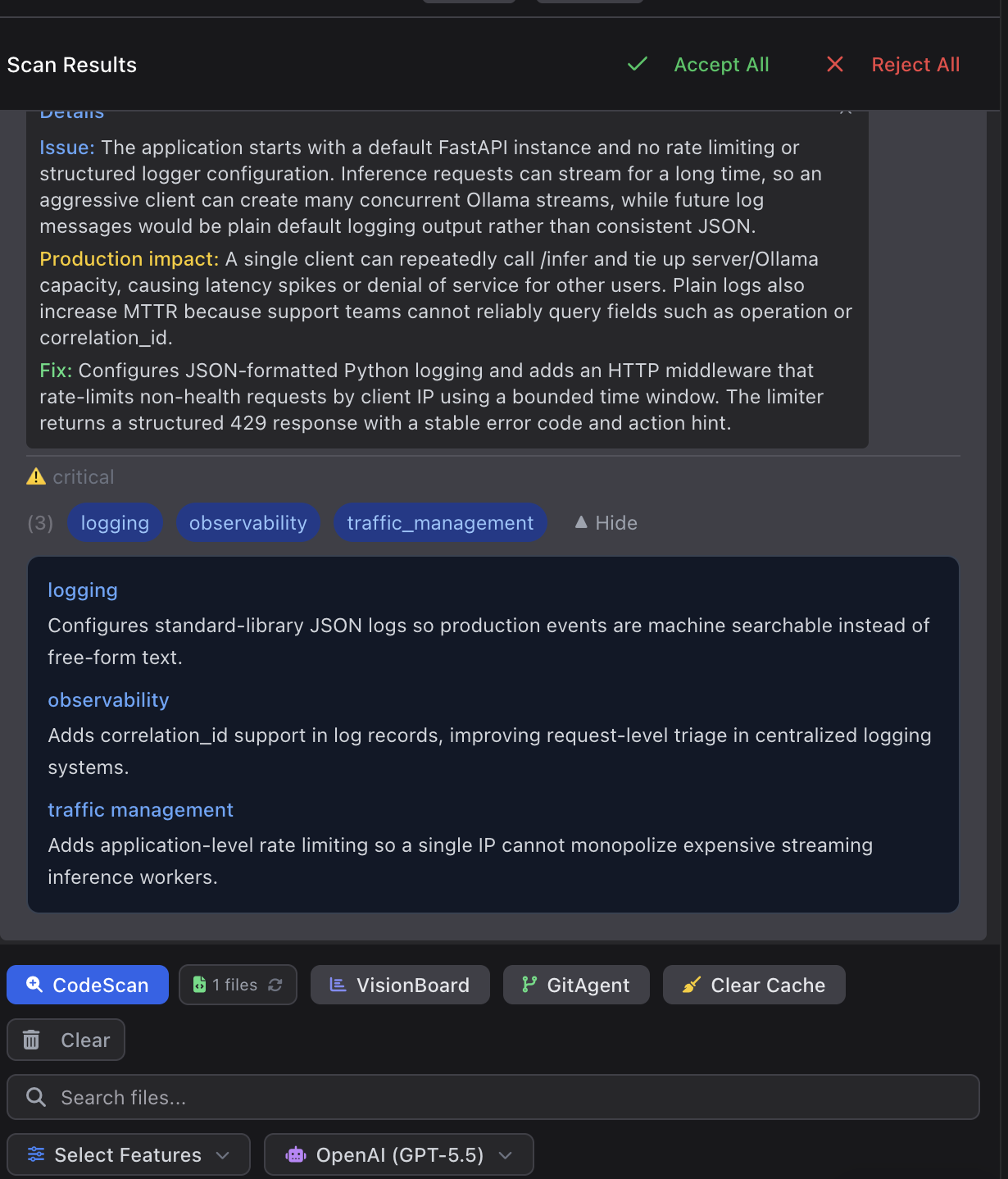
Click any recommendation to expand the Details panel. Each finding includes three parts:
Below the details you will see the associated code patches tagged by category (logging, observability, traffic management, etc.). Click Accept All to apply all fixes at once, or review them individually.
Switching accounts
To sign out or switch accounts, click your account ID in the top-right corner of the Tomosu AI Assistant panel and choose Sign Out. You will be taken back to the login screen.
Downloading scan results
After a scan completes, use the PDF and JSON buttons in the top bar of the results panel to export your scan report in either format. The JSON export is useful for integrating PRI scores into your CI pipeline or tracking them over time in your own tooling.
Clearing the cache
Click Clear Cache in the action bar to remove locally cached scan data. This forces a fresh analysis the next time you run CodeScan, which is useful after significant refactors.
Uninstalling
To remove the extension, open the Extensions panel (Ctrl+Shift+X /
⌘⇧X), search for Tomosu AI Plugin, click the gear icon, and select
Uninstall. Your account and scan history on VisionBoard are not affected by uninstalling the
local extension.