Ask Tomosu AI for suggestions right where you are already working, in VS Code, then carry the result into GitAgent and open a pull request without leaving your browser. No separate scan to configure, no CI step to wire up: the extension you already installed is the whole trigger.
This is the shortest path from "I am looking at some code" to "there is a pull request fixing it." You never leave your editor to start it, and you never leave the browser to finish it. Two surfaces are involved:
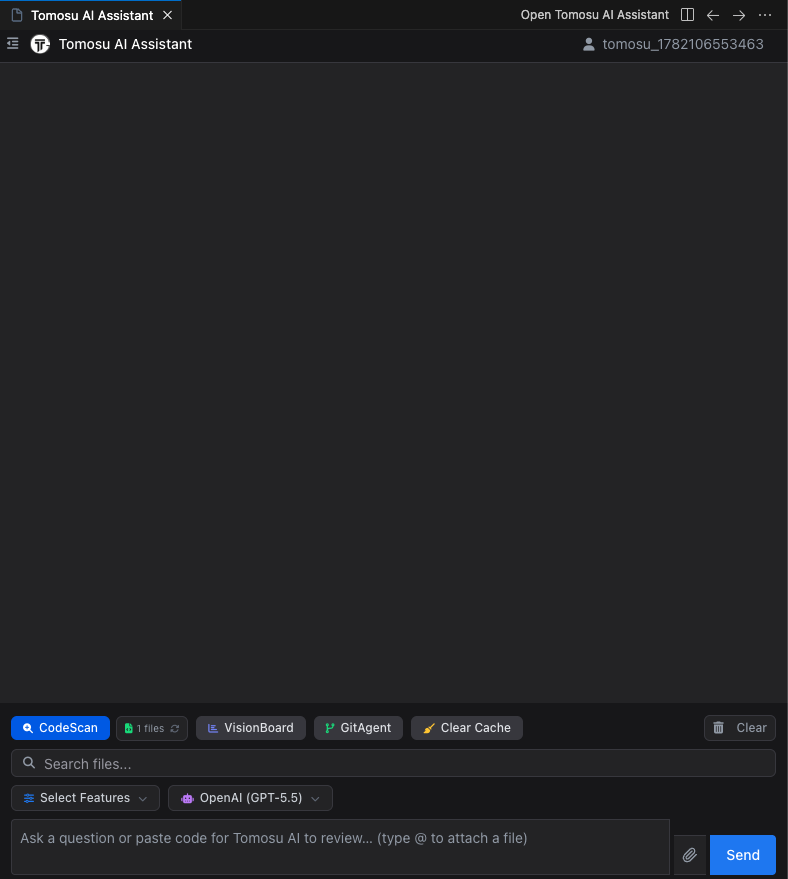
With the extension signed in, you're already looking at the Tomosu AI Assistant panel. Running a scan is one button.
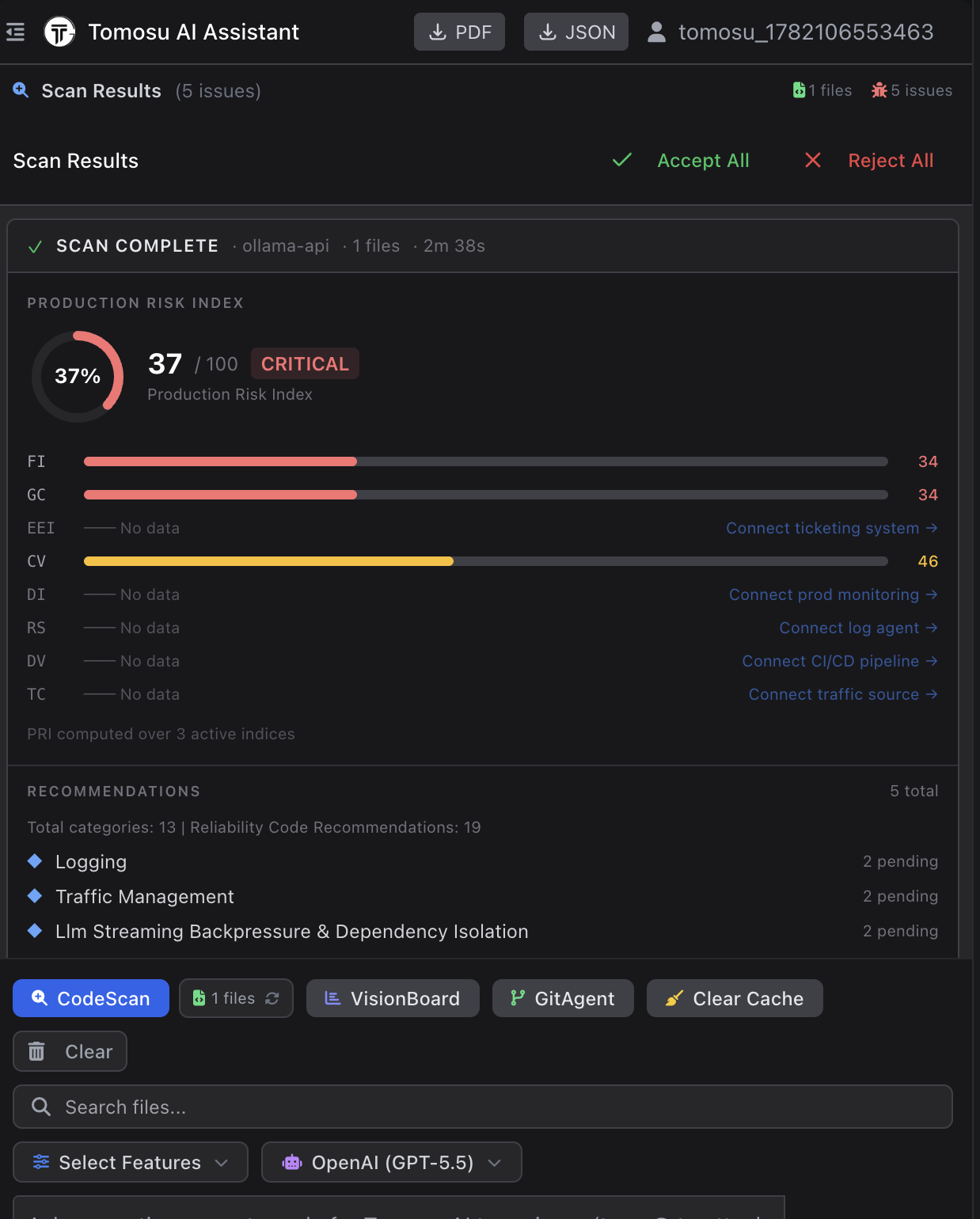
Click the CodeScan button at the bottom of the panel. Tomosu detects the files in your workspace and runs a reliability analysis against them, read-only, it never modifies your files. A typical scan takes under three minutes.
Results post back in the same panel: an overall PRI score out of 100, a sub-index breakdown, and recommendations prioritised by production impact, each one explaining what the issue is and why it matters before it ever reaches production.
A suggestion in VS Code isn't a pull request yet, it's a recommendation against a file. Turning it into a pull request happens in GitAgent, Tomosu's git assistant.
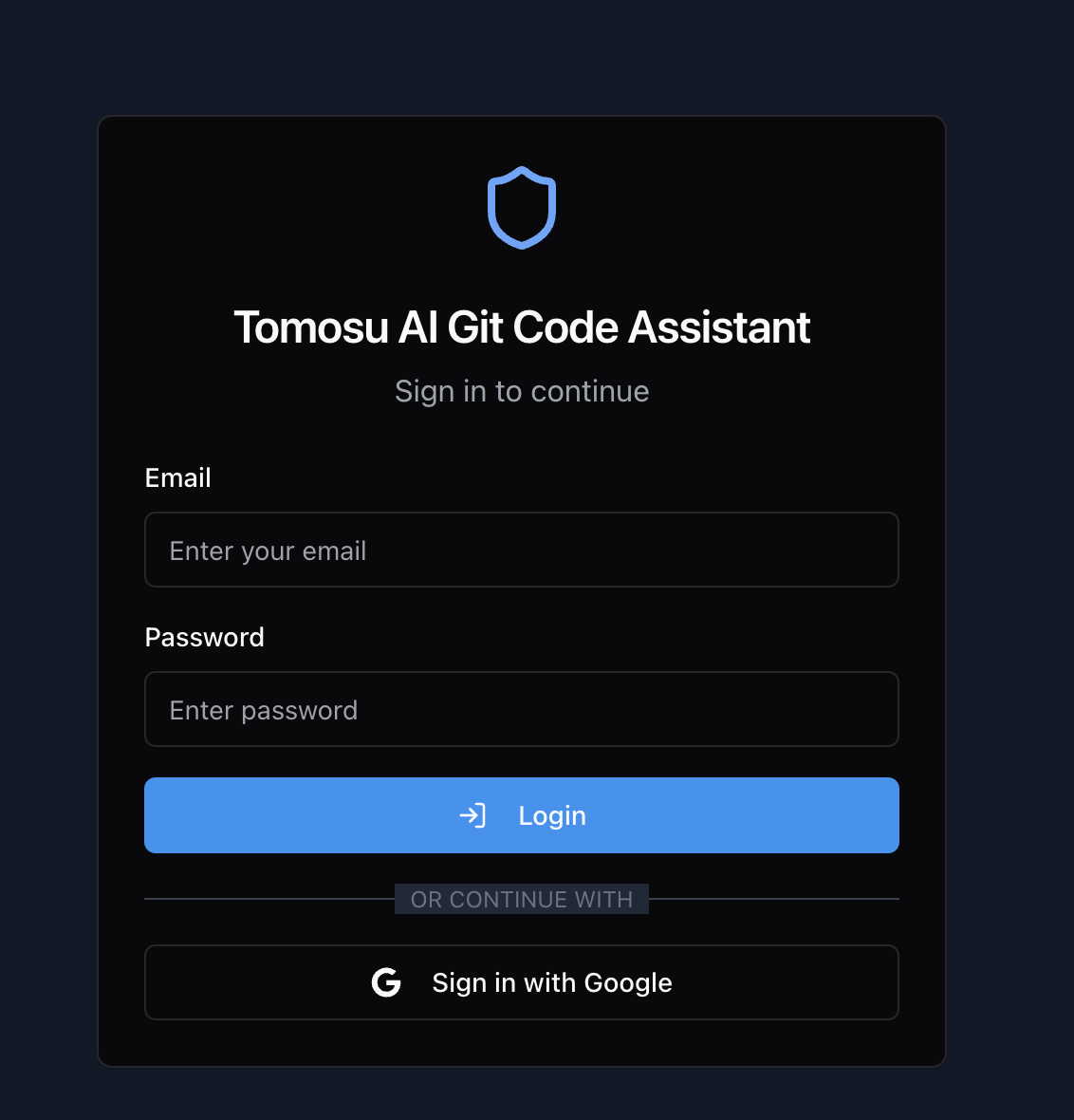
Open gitagent.tomosu.ai and log in with your Tomosu account email and password.
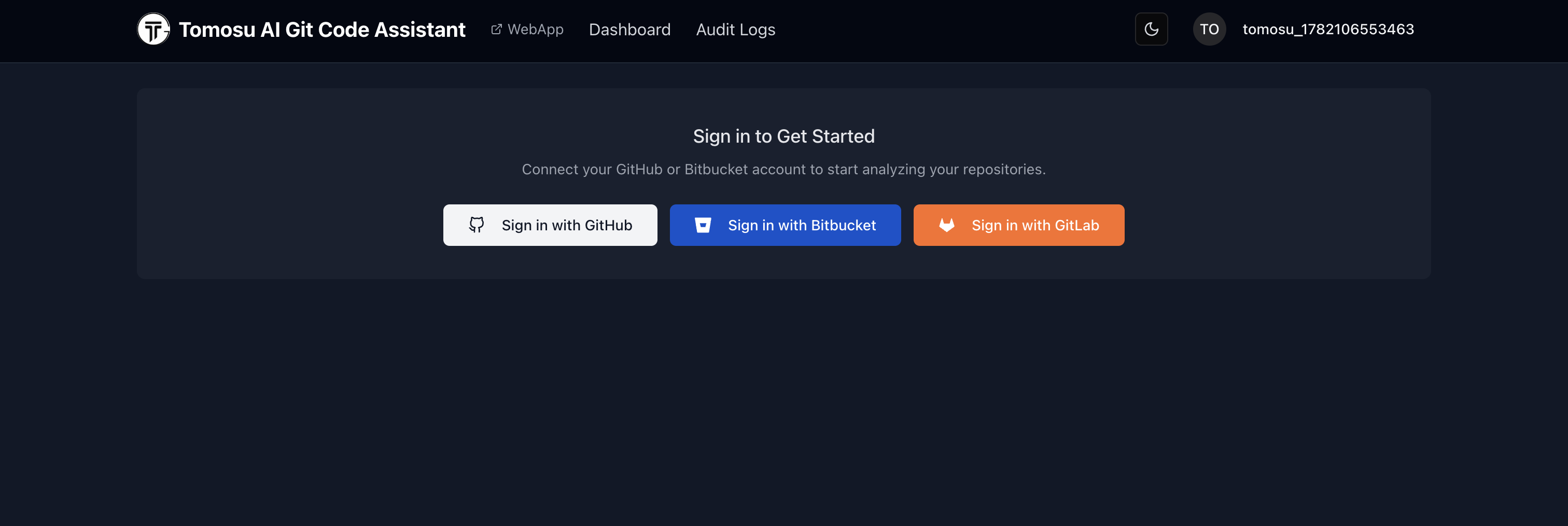
The first time you use GitAgent, it needs permission to see your repositories before it can show you anything else. If you've already connected a provider on an earlier visit, GitAgent skips straight past this and you land on the repository picker below.
After logging in, connect your git provider via OAuth. GitHub is the default, but Bitbucket and GitLab work the same way. Authorise the connection on the provider's own page, and you're returned to GitAgent with your repositories available.
With GitHub connected, GitAgent can pull in the fix and let you decide what happens to it. Nothing is pushed to your repository until you say so.
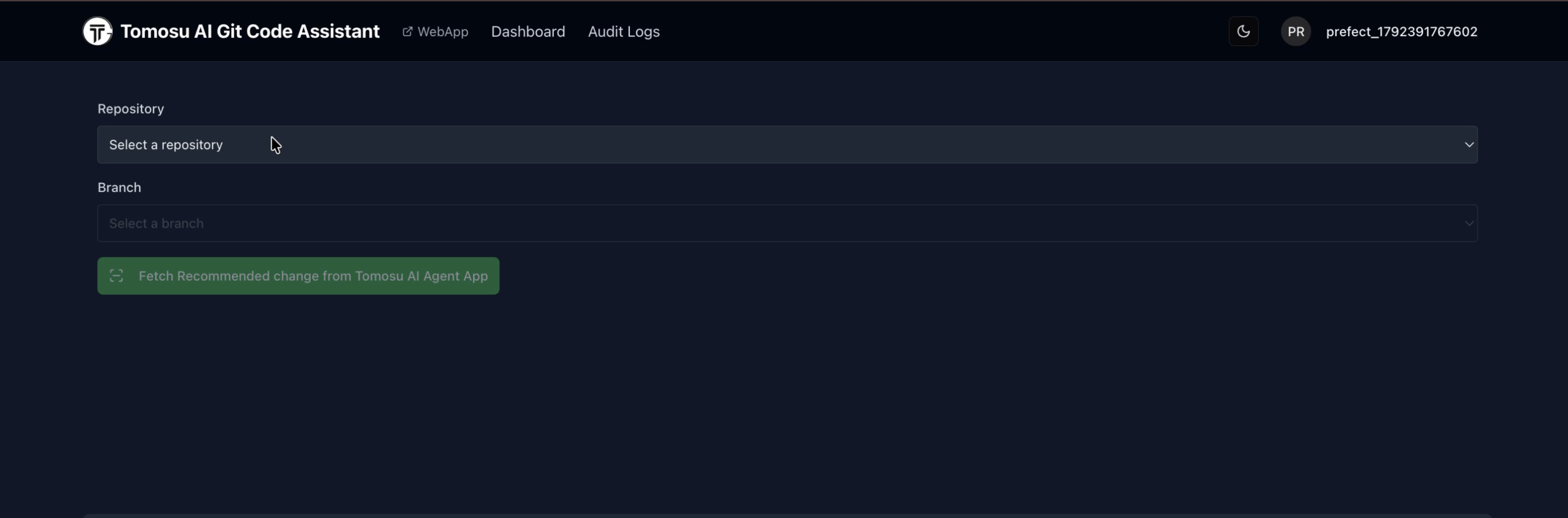
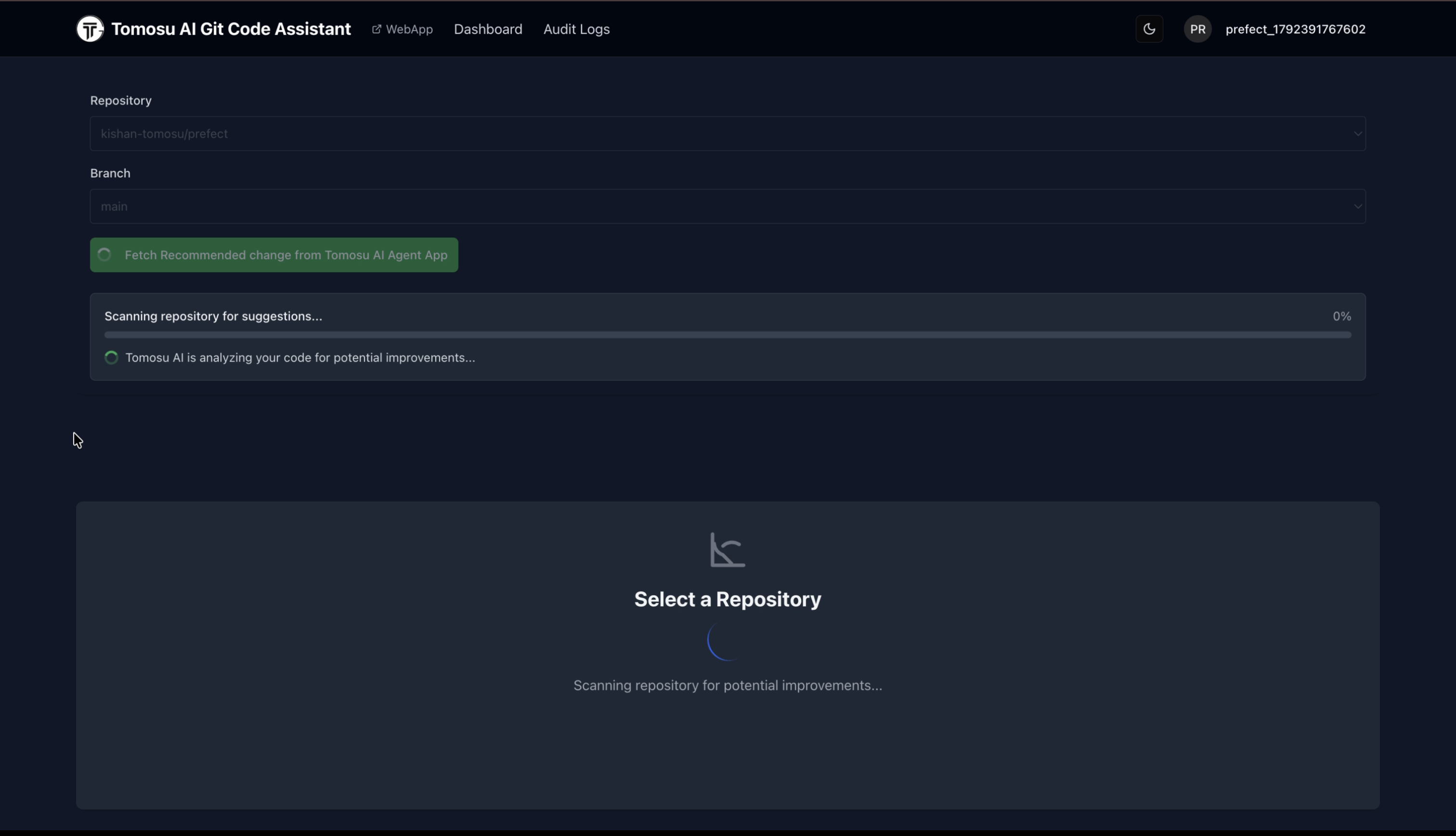
Select the Repository and Branch the suggestion applies to, then click Fetch Recommended change from Tomosu AI Agent App. This is what actually pulls your VS Code-originated suggestions into GitAgent — nothing shows up until you click it.
GitAgent matches the fetched suggestions against your repository's current state. A progress bar and status line show it working; this takes a few seconds to a couple of minutes depending on repository size.
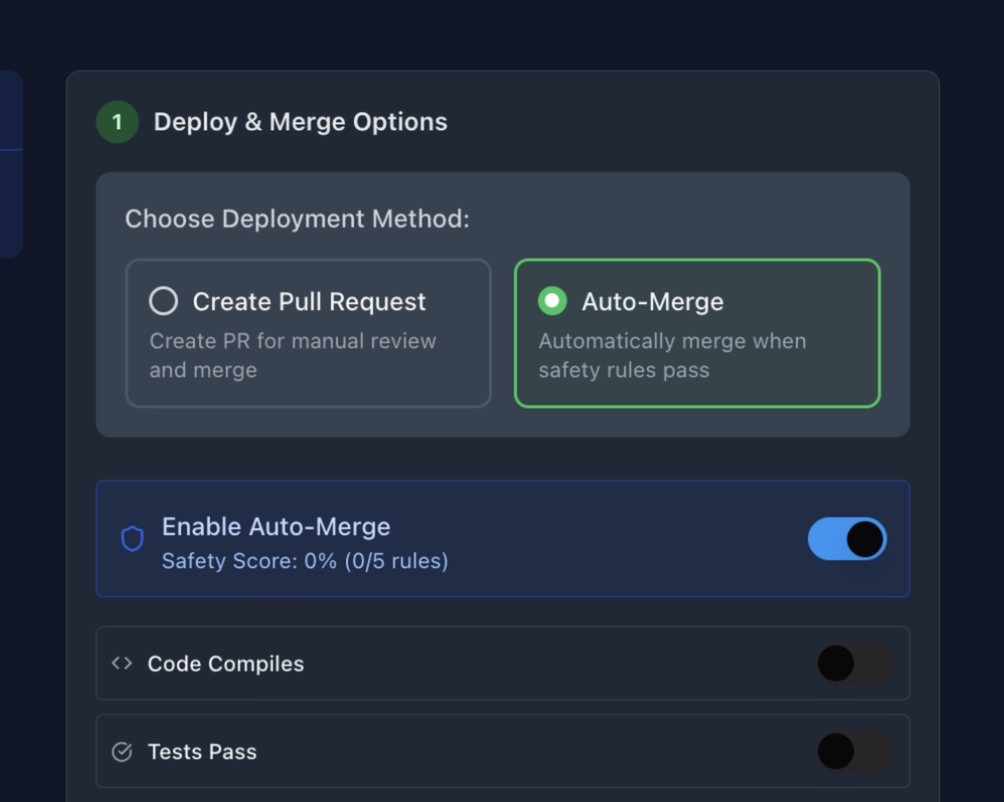
Once the scan finishes, GitAgent asks how you want to ship the fix: open a pull request for manual review and merge, or auto-merge directly when its safety checks pass. Pick Create Pull Request to keep a human review in the loop.
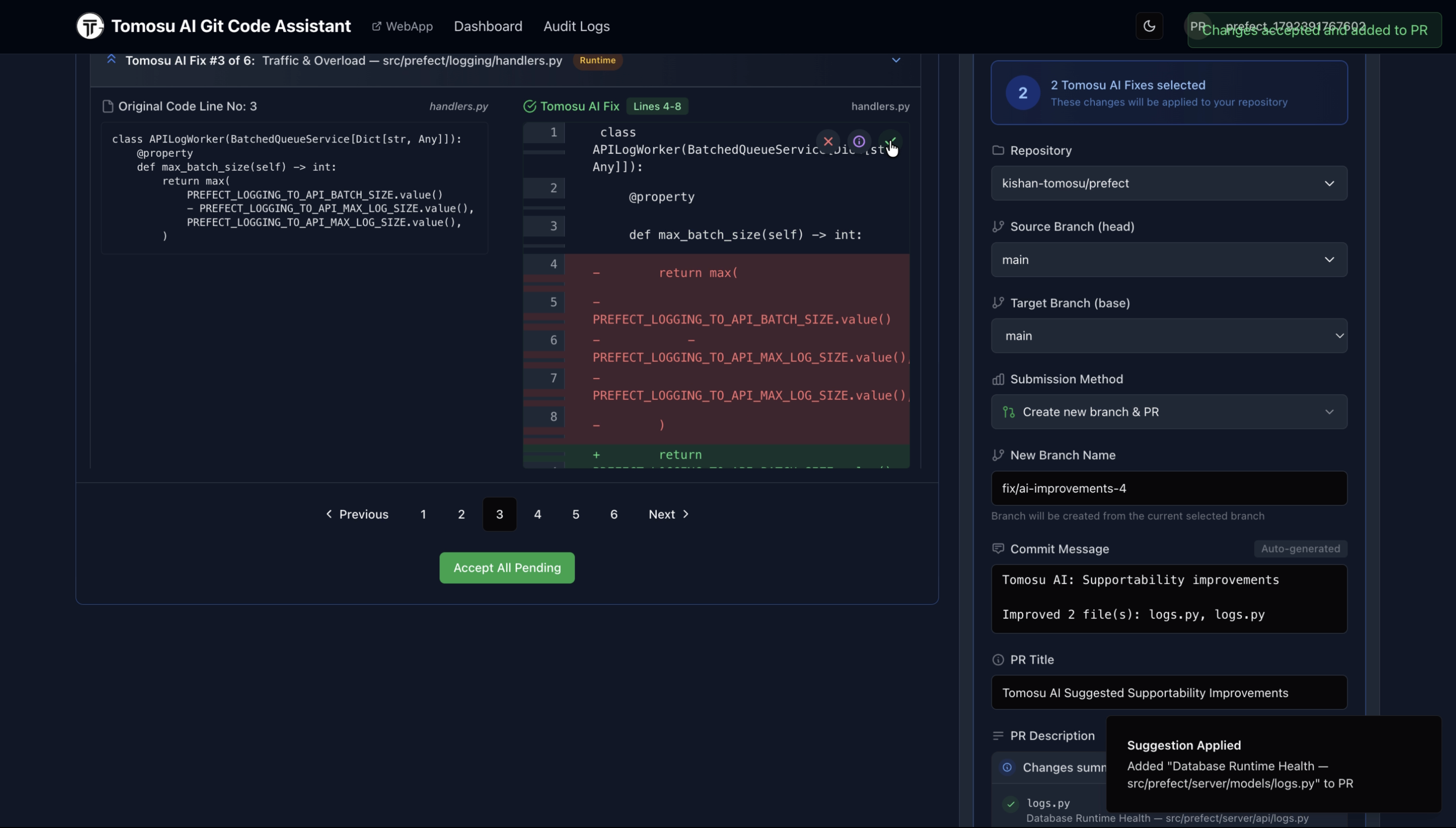
GitAgent steps through every fix one at a time, showing the original code next to Tomosu's proposed change as a diff. Accept individual fixes, or click Accept All Pending. As you accept fixes, the panel on the right fills in the pull request itself: branch name, commit message, PR title and description, all generated from what you accepted.
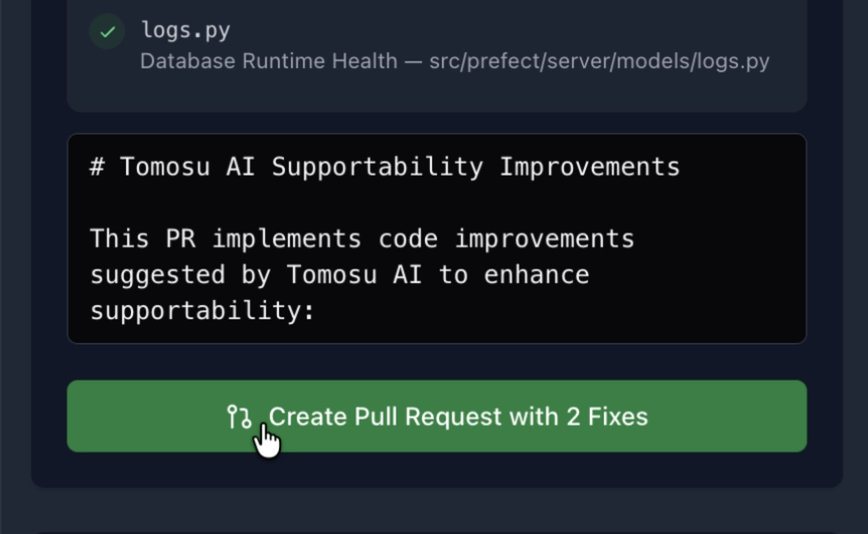
Check the PR title and description GitAgent generated, edit them if you want, then click Create Pull Request with N Fix(es). This is the moment the pull request is actually opened on GitHub, using your connected GitHub account.
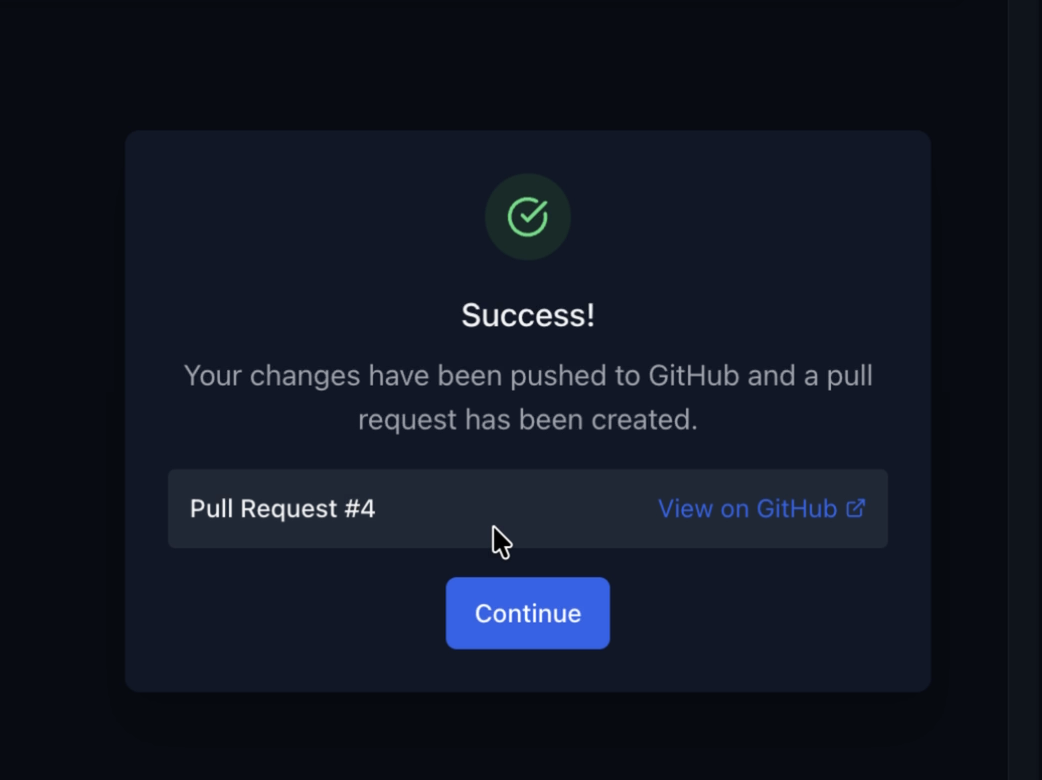
GitAgent confirms once the pull request is live, with a direct link to view it on GitHub.